Run Research Tasks on Remote SSH Hosts with Open Science
Learn how to configure a remote SSH host, enable and select it per session, and use Open Science permissions, Skills, and artifacts to review remote work.
What Does Session-Scoped Remote Compute Solve?
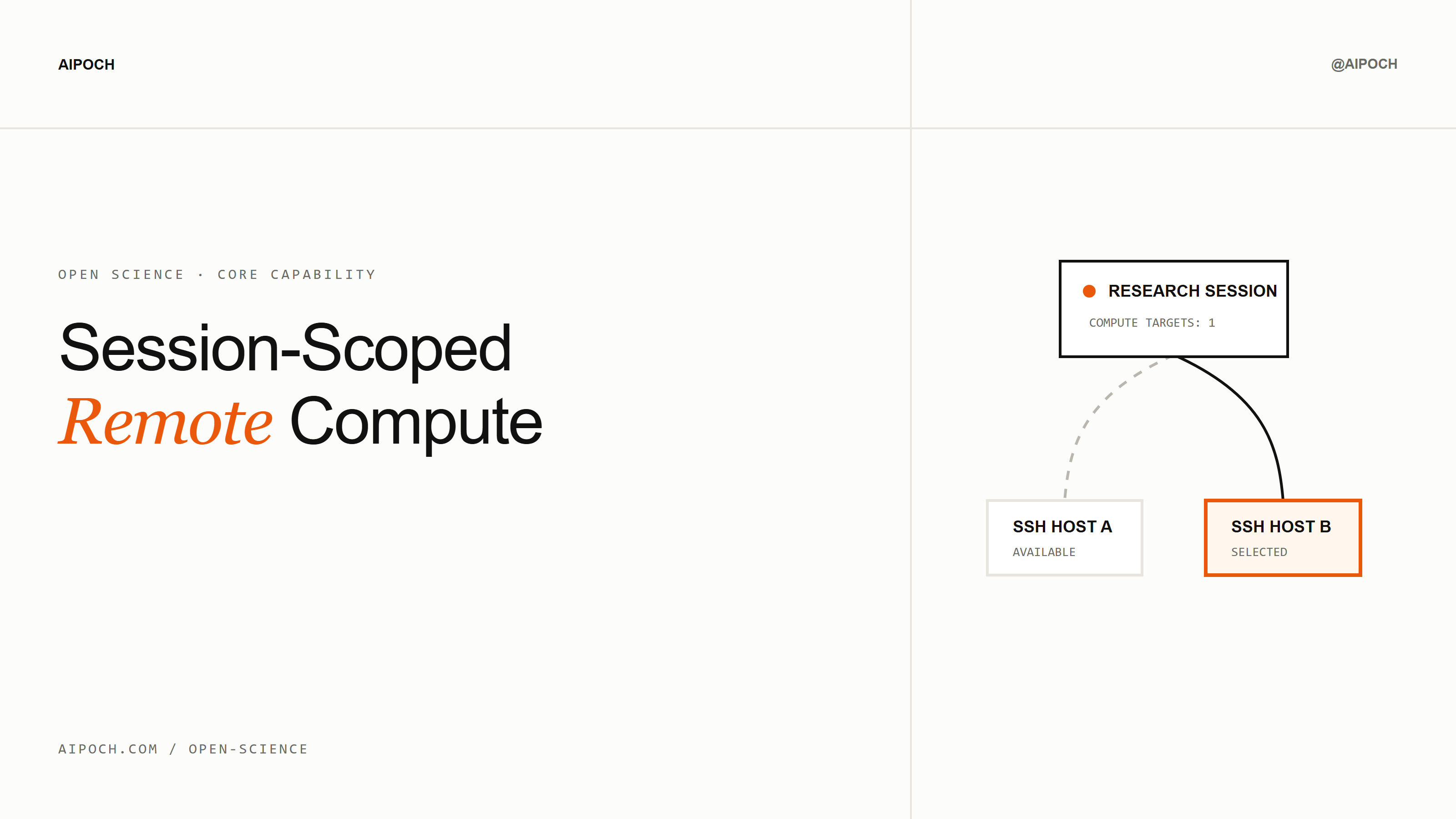
Remote SSH compute in Open Science lets researchers configure remote machines once and choose execution targets for each research session. A project can keep local inspection, workstation preprocessing, server analysis, and artifact review in separate sessions without applying one undifferentiated compute selection to every conversation.
Open Science is AIPOCH's open-source, local-first, model-agnostic AI research workbench for scientists and researchers. Session-scoped compute was introduced in v0.18.1 and checked here against v0.18.2.
Each session stores an enabled set and a selected set. Enabled hosts are discoverable by the agent; an enabled host is labeled available until it is selected as an execution target. Selected hosts are therefore a subset of the hosts enabled for that session—not a separate replacement for the enabled set.
This distinction makes the current compute context easier to inspect. It does not automatically route every operation to a remote machine. Actual remote execution still depends on the task instructions, the Remote Compute capability, permissions, connection state, and the operation being invoked.
What Are the Configured, Enabled, Available, and Selected States?
Open Science uses three operational stages: a host can be configured in the desktop application, enabled for one session, and selected as one of that session's execution targets. available is the agent-facing label for an enabled host that is not selected; it is not a third stored host set.
| State | Meaning | Boundary |
|---|---|---|
| Configured | The SSH profile exists in Open Science and can appear to the researcher in the interface | The agent does not necessarily know that the host exists |
Enabled / available | The host belongs to the session's enabled set and is discoverable by the agent; until selected, the agent-facing label is available | It is not one of the session's selected execution targets |
| Selected | The enabled host also belongs to the session's selected set | Selection does not force every operation to run remotely or define a priority among multiple selected hosts |
The v0.18.1 release notes define the same model: separate enabled and selected sets, with agent-visible hosts labeled available or selected. This wording matters because “available vs selected” describes labels, while “enabled vs selected” describes the stored session-level sets.
Multiple hosts can be selected for one session. Open Science does not document an internal ranking among them or automatic placement logic. Which host is used for a particular remote action depends on the Skill or tool, the task instructions, and the operation being requested.
How Do You Configure Once and Select per Session?
Researchers first create and test the SSH profile in the desktop application, then use the session Composer to enable and select the relevant host. Host administration stays separate from session selection, so CLI or API clients cannot silently create new remote credentials while submitting a task.
1. Configure and test the SSH host
Open Settings → Compute in the desktop application. Add the host, enter the required connection details, and test the configuration. Host creation, credential setup, probing, editing, and deletion remain desktop-only in v0.18.2.
Treat the remote host as a separate trust boundary. Review its accounts, directories, credentials, installed software, network access, storage policy, and data-governance requirements before sending sensitive material. A successful connection test confirms the route; it does not validate the scientific environment or authorize a dataset for transfer.
2. Inspect the host in the session Composer
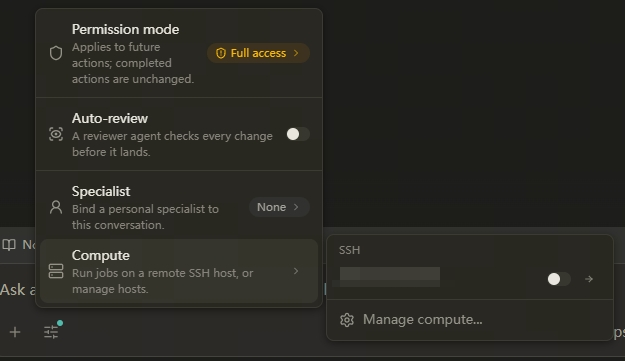
Open the session controls and choose Compute. A configured host may appear in this interface for the researcher without being exposed to the agent. Once it is enabled for the session, the agent can know that the resource exists and sees the label available until the host is selected.
Screenshot: actual Open Science interface from AIPOCH's live feature documentation. The SSH alias is obscured. It shows a configured host before selection; labels may vary by installed version.
3. Select an execution target
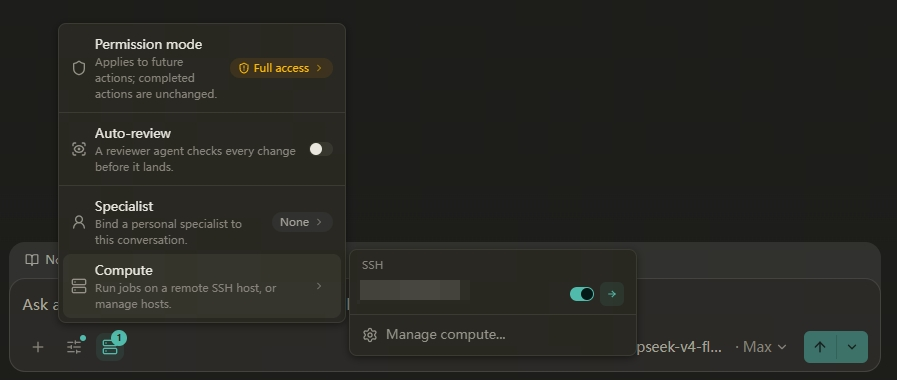
Select the relevant host for the current session. The Composer indicates the selected target, and the agent-facing state changes from available to selected when the host is both enabled and selected.
Screenshot: actual Open Science interface from AIPOCH's live feature documentation. It shows the same SSH host selected for the current session.
The task still needs an applicable remote-compute method, a healthy connection, valid credentials, permitted operations, and clear instructions. Researchers should inspect command activity and returned artifacts as they would for local execution.
How Do Desktop, CLI, and Task API Selection Differ?
The desktop application administers SSH profiles and offers per-session controls. The CLI selects already configured hosts with repeatable --compute-host <provider-id> flags, while the Task API and SDK provide the equivalent selection through a computeHostIds array. The API does not receive CLI flags.
The versioned v0.18.2 CLI guide verifies the SSH provider-ID format and repeatable flag:
open-science run \
  --project "Large dataset analysis" \
  --prompt-file ./task.md \
  --compute-host ssh:cluster-a \
  --wait --json
To select more than one configured target, repeat the option:
open-science run \
  --project "Large dataset analysis" \
  --prompt-file ./task.md \
  --compute-host ssh:cluster-a \
  --compute-host ssh:cluster-b \
  --wait --json
ssh:cluster-a and ssh:cluster-b are example provider IDs from the official CLI documentation. A real command must use provider IDs already configured in the user's installation. Omitting the options preserves the session's existing selection.
For automation, Open Science checks the relationship among the project, session, provider, and requested host. This does not replace SSH hardening, operating-system permissions, or review of remote commands.
What Does a Practical Multi-Host Workflow Look Like?
A general research project can separate local input inspection, preprocessing on a workstation, a memory-intensive analysis on a server, and local review of returned artifacts. Each session carries only the compute context relevant to its part of the work.
- Local inspection: Review input files and expected outputs without selecting a remote target.
- Workstation preprocessing: Enable and select a workstation that has the required storage or software environment.
- Server analysis: Select one or more server targets for the operation that needs additional memory or a prepared environment.
- Artifact review: Return to the project workspace to inspect reports, figures, logs, and available execution evidence.
The value is explicit context, not automatic resource optimization. Legacy sessions from before v0.18.1 migrate their previously enabled hosts into the selected set; researchers with several configured machines should review those migrated selections.
How Does Remote Compute Work with Skills, Permissions, and Artifacts?
Compute selection identifies remote resources; it does not supply the research method, approve actions, or validate results. Open Science combines the selection with a Remote Compute Skill, permissions, the SSH environment, activity records, artifacts, and researcher review.
| Layer | Role in remote work |
|---|---|
| Session compute selection | Stores enabled hosts and selected execution targets for one session |
| Remote Compute Skill | Supplies instructions and tooling for submitting and collecting remote work |
| Permission controls | Allow, require confirmation for, or block relevant actions |
| SSH host environment | Provides the operating system, software, storage, and compute resources |
| Artifacts and activity history | Preserve returned outputs and available evidence for inspection |
| Researcher review | Checks methods, data handling, execution records, and scientific validity |
The Open Science repository describes the Remote Compute (SSH) Skill as a way to submit and harvest long-running jobs on configured hosts. Skills can execute code or send data externally, so researchers should review their source, dependencies, permissions, and network behavior before use.
Remote execution may return commands, logs, files, and environment observations, but reproducibility can also depend on data versions, package locks, random seeds, hardware, and uncaptured system state.
What Are the Current Limits and Security Boundaries?
Remote compute in Open Science v0.18.2 is SSH-only. It does not provide native Slurm submission, cloud-GPU provisioning, automatic multi-node scheduling, automatic placement among selected hosts, or a local GPU compute backend.
Current boundaries include:
- Host creation, credentials, testing, editing, and deletion remain desktop operations.
- Selection does not bypass approval controls, ownership checks, SSH permissions, credentials, or host health.
- Configuring or selecting a host does not validate its software environment or scientific suitability.
- Files and task content sent through SSH leave the local machine and become subject to the remote environment's controls.
- Completed remote work can still contain methodological, statistical, software, or interpretation errors.
These boundaries define the shipped capability: explicit, session-persistent SSH host enablement and target selection—not a cluster scheduler or an autonomous compute-placement system. The v0.18.2 known limitations keep native Slurm and cloud-GPU submission outside the current release.
Conclusion
Open Science lets researchers configure remote SSH hosts once, enable the relevant resources per session, and select one or more execution targets across desktop and automation surfaces. The enabled and selected sets make agent discovery and execution intent distinct, reviewable states.
Use the feature with clear task instructions, the appropriate Remote Compute capability, approval controls, SSH security, and artifact review. For current downloads and product status, consult the latest Open Science release.
Frequently Asked Questions
Can I select more than one compute host?
Yes. A session can contain multiple selected targets. The CLI accepts repeated --compute-host <provider-id> flags, while the Task API and SDK accept the equivalent computeHostIds selection. Selection does not define an undocumented priority or automatic placement policy among those hosts.
Can the CLI create or edit SSH hosts?
No. The CLI, Task API, and SDK select hosts that were already configured. Host creation, credentials, probing, editing, and deletion remain desktop-only.
Does Open Science support Slurm or automatic cloud-GPU jobs?
Not currently. As of v0.18.2, remote compute is SSH-only. Native Slurm submission, cloud-GPU execution, and automatic multi-node scheduling remain outside the shipped capability.
Does selecting a host bypass permissions or connection checks?
No. A selected target remains subject to project, session, and provider ownership checks, action controls, SSH permissions, valid credentials, and host health.
Disclaimer
Open Science assists research execution and record-keeping; researchers remain responsible for security, data governance, methods, interpretation, and scientific validity.